
|
|
|
| "Software Tailored for You!" | |
|
Sample Screenshots of
Donarius® Church Management Software (Also known as Donation Tracking Software or Donor Management Software) |
||
|
||
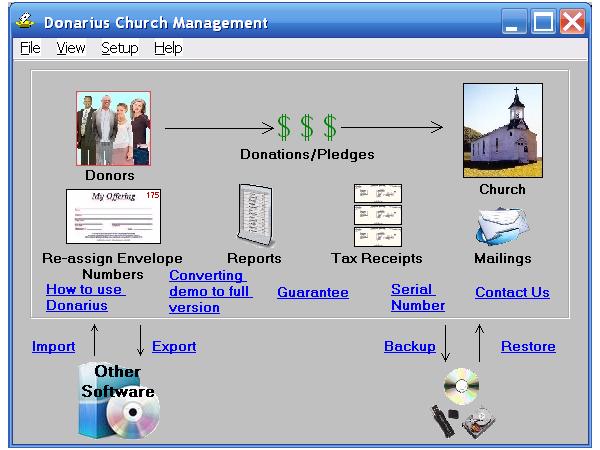
| The main Donarius window. | ||
|
||
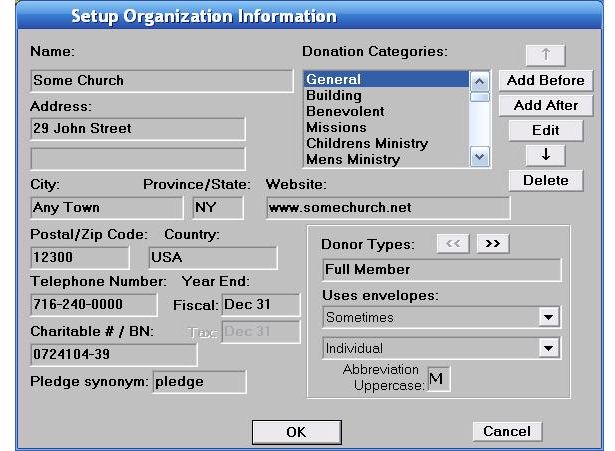
| This is where you enter information about your church or organization. All donations you receive will apply to a given donation category. The list at the top right of the window, has all the donation categories. You can add or edit them to suit your needs. Each donor is assigned a donor type and any combination of donor characteristics. These can be customized on the bottom right of the window. | ||
|
||
|
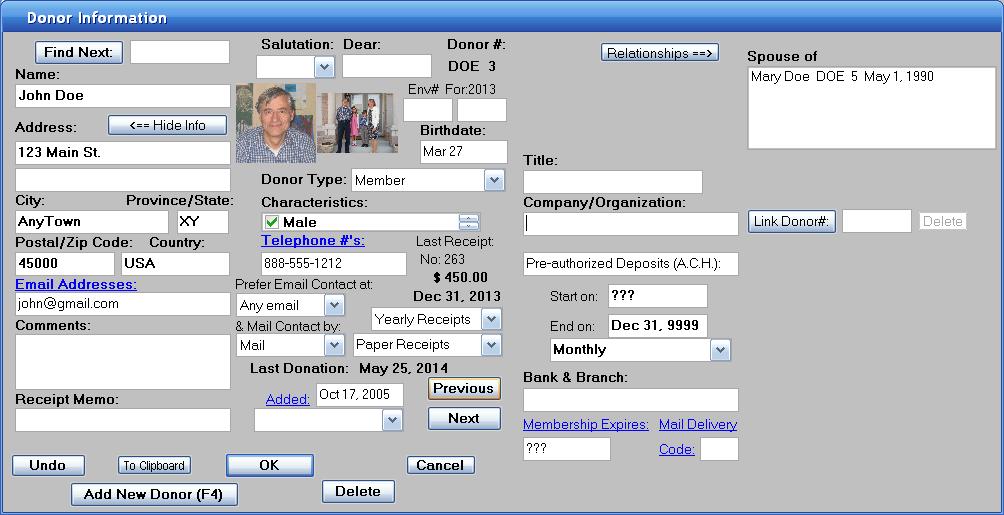
The window where you add or edit information
about each donor. Each donor has a donor type and
any combination of donor characteristics. They also
have a preferred method of contact: mail, email or FAX. When you are doing a mailing, this determines whether they will get labels and/or letters or be sent an email. |
||
|
||
|
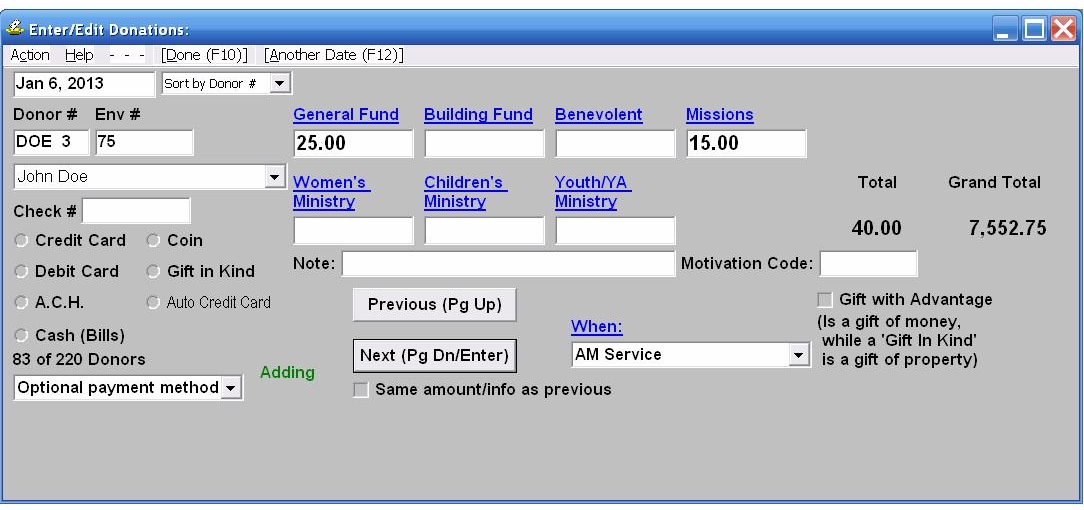
This is the window where you enter or edit the
donations each donor made. To find a donor, you
type the first three letters of the person's last name or
their envelope number. If there are several people with a
similar last name, you will choose the right person from a list.
Then you enter the donation in
the appropriate category. You may also record
how each donation was made: by giving a check # or choosing cash, credit card, etc. |
||
|
||
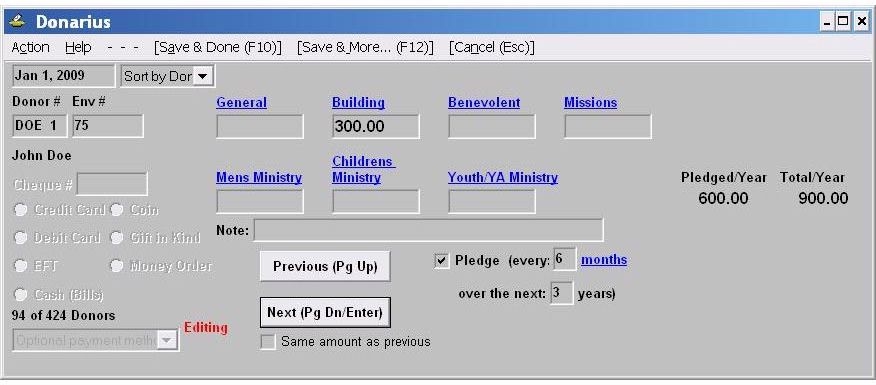
| Here is where you enter or edit the pledges each donor made. For each pledge you indicate how often a donation will be made and how long your campaign lasts. The donor shown here has pledged to give $300.00 every six months to the building fund for a period of three years. | ||
|
||
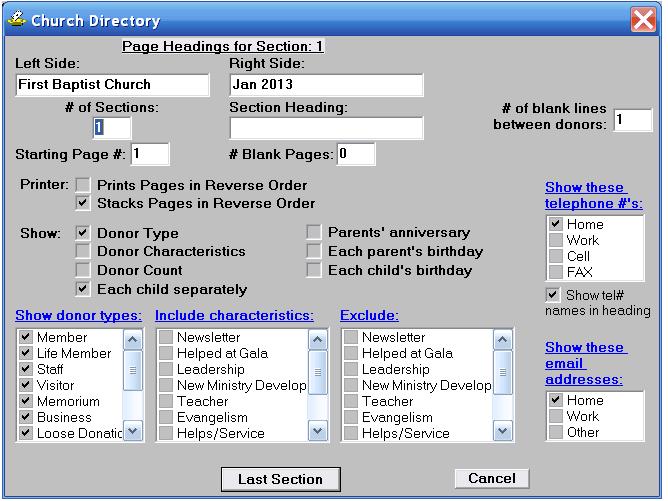
| The window where you setup your church directory. You indicate information for each section in the directory, such as which donors to include, how to number the pages and what headings you want. | ||
|
||
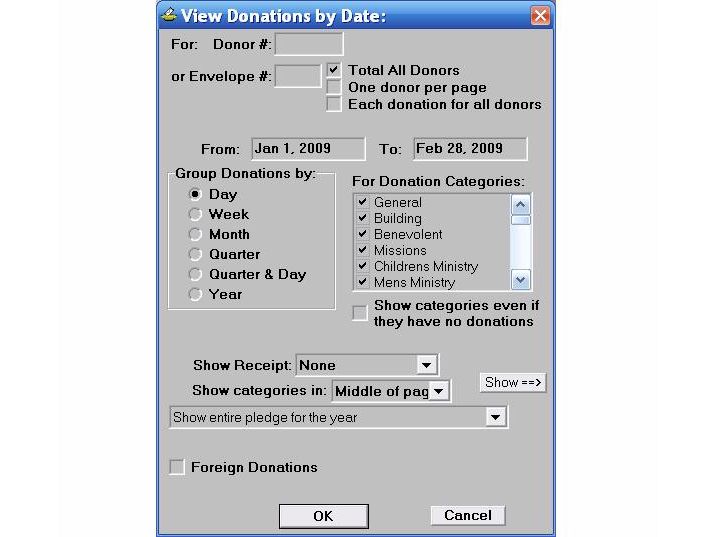
| There are various reports in Donarius. This is where you do a report of the total donations, grouped in various ways. You also have the option of doing a report for one donor or all donors with one donor per page. | ||
|
||
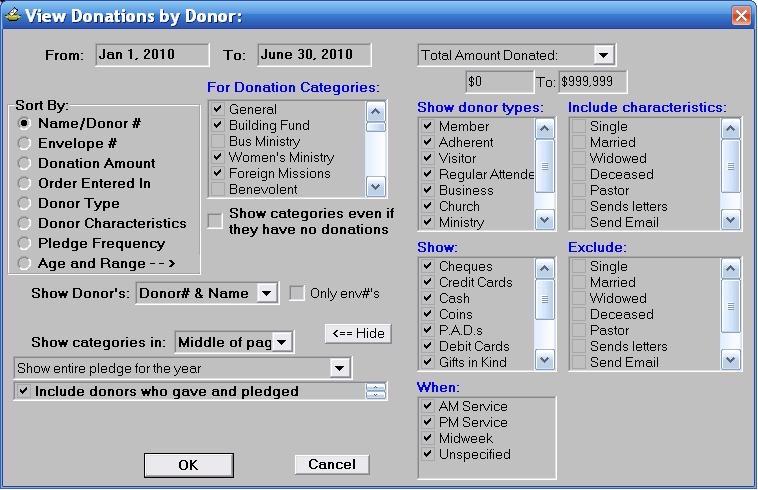
| This is where you do a report that lists each donor and how much they gave. The donors can be sorted by donor #, envelope #, the order in which you entered the donations, the donation amount or donor type. | ||
|
||
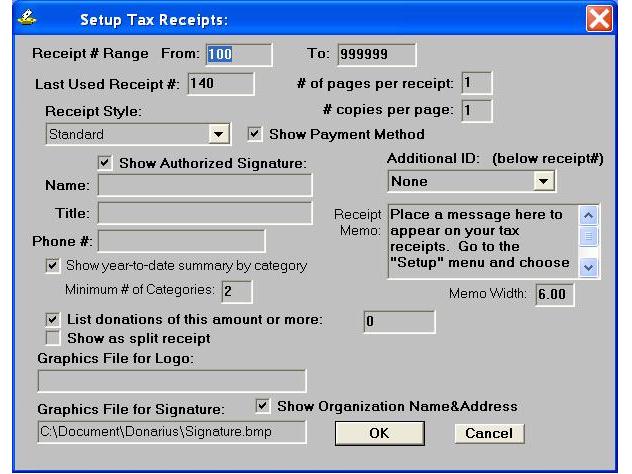
| Receipts to be given for income tax purposes have a variety of formats. You have a choice of several built-in receipt styles with several options. For example, you may wish the receipt to have a logo, a scanned signature, a section for the donor's records, showing a year-to-date summary of donations or a list of the donations they made. An optional message can also appear on the receipts. If these options are not enough, you can have a customized tax receipt. (Canadian users must show a receipt number, which will automatically be numbered.) | ||
|
||
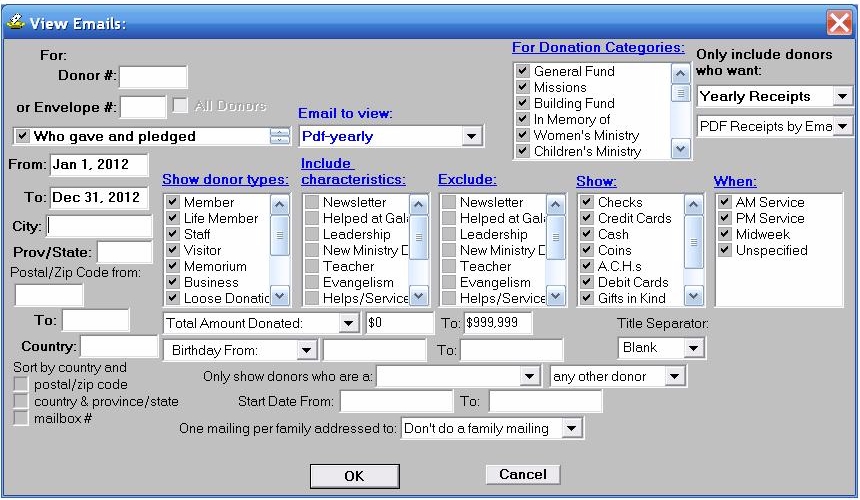
| Donarius sends out personalized letters, emails and text messages. Here is where you select who is going to get an email. This shows how to send an email with a PDF attachment of each person's 2012 tax receipt. (The window for letters and text messages is similar.) | ||
|
||
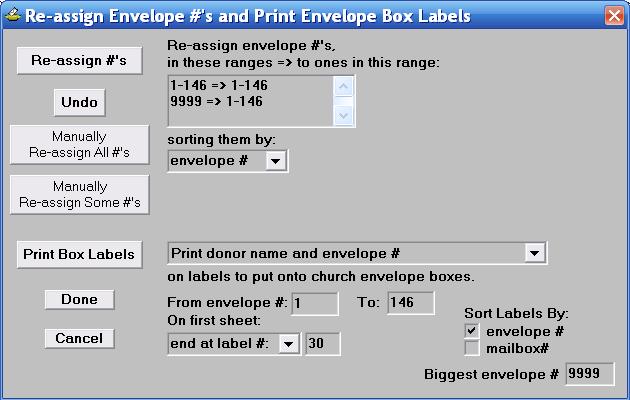
| At the end of the year it is easy to give each donor a new envelope number. Then you also can print labels to put onto each envelope box. | ||
|
||
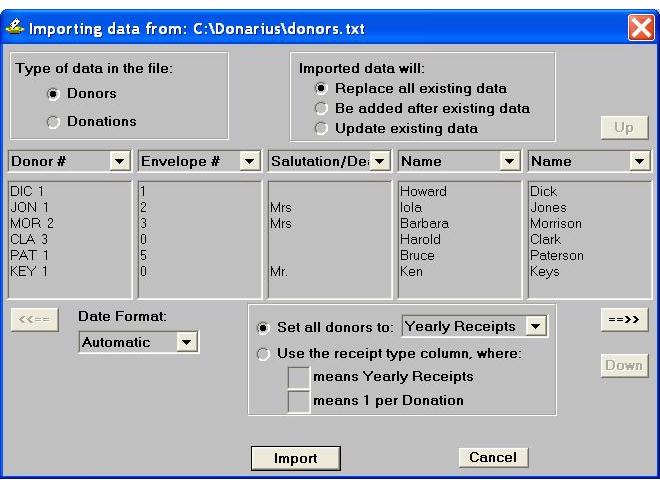
| To transfer data from your previous software to Donarius, export it to a text file then import it into Donarius. Here is how you would import the donor names and addresses. You choose what each column in the text file represents and what to do with the data. | ||
|
||
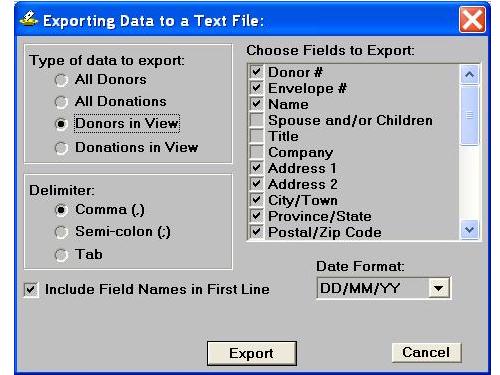
| To transfer data from Donarius to other software you export it to a text file. You have a choice of exporting all donors, all donations, only the donors shown in a report or only the donations shown in a report. Here, the names and addresses of donors that were being viewed in a report, are being exported. | ||
|
||
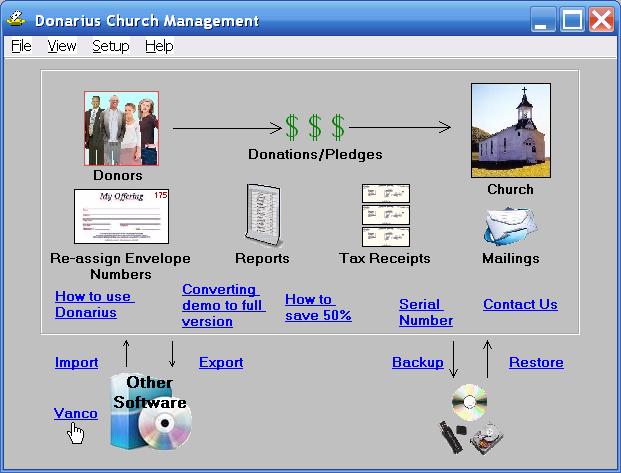
| If you use a company (e.g. Vanco) to process your pre-authorized deposits (A.C.H.) you can add link near the bottom left of the main window. Click it to select the contribution file, then you will see a window similar to what is below. | ||
|
||
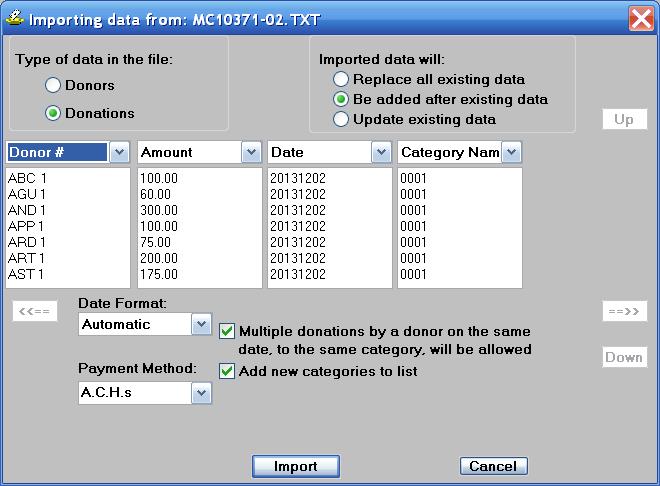
| When importing a contribution file, you will see the first few lines of data similar to what is above. You check that the data seems right then click the Import button. | ||
|
Download a Free Demo of Donarius >>> Note: A demo
version has these limitations: |
||
| <<< Back to Donarius Main Page | ||
| Last Modified: July 10, 2026 |
® Registered trade-marks of Nuverb Systems Inc.
Copyright © 2026 Nuverb Systems Inc. |
The multifaceted uses
of Donarius®: Church Management Software Donor Management Software Donation Tracking Software Pledge Tracking Software Photo Directory Software Synagogue Management Software |